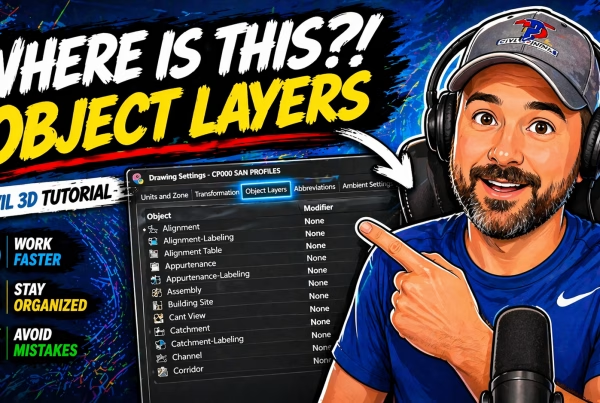

If you’ve ever changed a profile and suddenly your labels were wrong… or stopped updating altogether—you’re not alone.
This is one of the most common (and frustrating) issues in Civil 3D.
In this quick tutorial, I’ll show you why it happens—and how to create dynamic profile labels that update automatically so you never have to fix them manually again.
The Problem
Profile labels that don’t update can lead to:
- Incorrect elevations showing in your profile view
- Slopes and grades that no longer match your design
- Manual overrides that hide real design changes
- Extra time spent re-labeling after every revision
This usually shows up after you modify a profile—like adjusting a PVI or vertical curve—and your labels don’t reflect the change.
The Common Mistake
The mistake is simple:
Manually editing or overriding profile labels.
It might seem like a quick fix… but under the hood:
- The label is no longer dynamic
- It stops referencing the actual profile data
- Future changes won’t update automatically
That’s when you end up chasing labels every time something changes.
The Right Way to Create Dynamic Profile Labels
Instead of overriding text, you want to set up labels the right way from the start:
- Use proper Profile Label Styles
- Insert fields that reference profile data (elevation, slope, station)
- Avoid static text or manual overrides
- Apply labels through the Annotate tab using “Add Labels”
This ensures:
- Labels update automatically when the profile changes
- Elevations and slopes stay accurate
- Your plans remain consistent without extra work
Quick Workflow Recap
When working with profile labels:
- Avoid manual overrides
- Use label styles with dynamic fields
- Apply labels using the correct tools
- Test by modifying the profile to confirm updates
That’s it.